Climate
Opens with a tap on the target temperature of the home screen, or on a climate card (bottom row; a long press shows its quick actions, whose Details opens this window): that card's unit, with its name as title. When the window closes, the home screen goes back to the climate picked in the blueprint. The Details of the quick actions opened by the room temperature (below) opens it too, on that unit.
Several units: the window has one page per climate unit (the one picked in the blueprint, then those placed on room cards). Swipe left or right for the next or previous one; the dots at the bottom show which one. With a single unit, there are no dots.
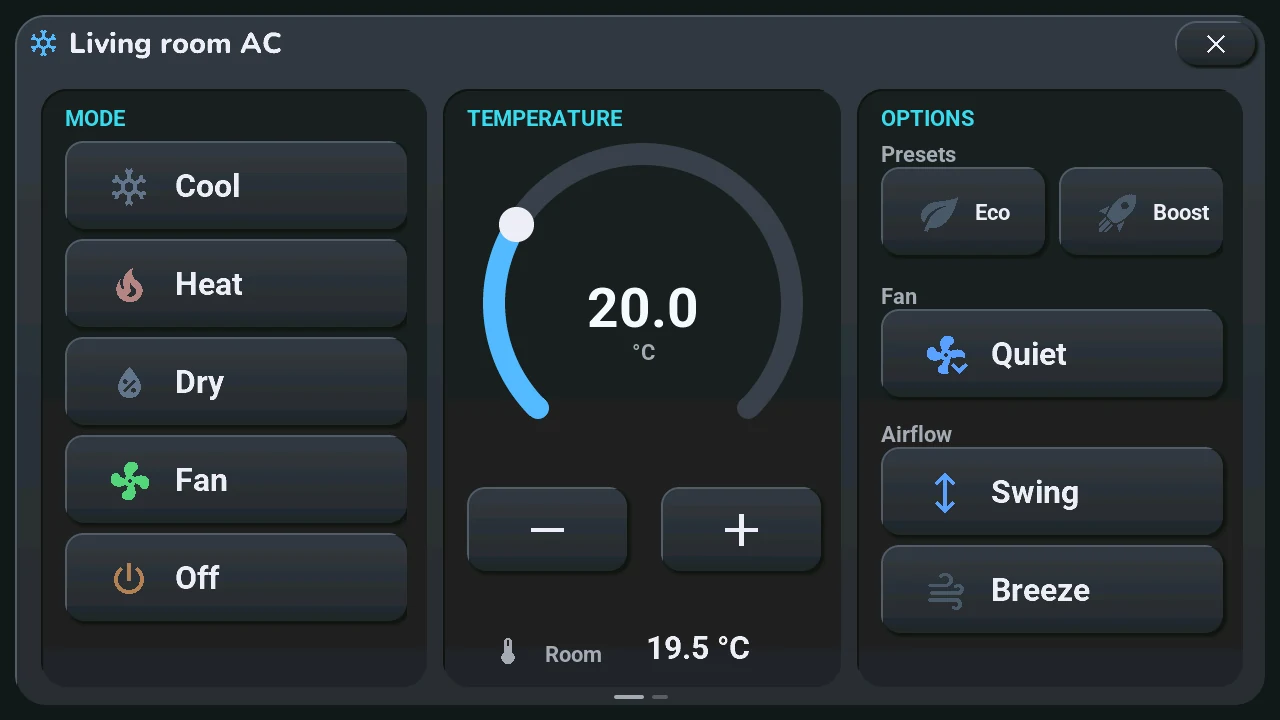
Mode (left): Cool, Heat, Dry, Fan, Off. The icon of the current mode is coloured.
Temperature (centre)
- Drag the arc, or tap − and +: the target shows at once and leaves as one command when you stop.
- Room, at the bottom: the room temperature.
Options (right), each a tap to turn on, another to turn off:
- Eco and Boost: the presets;
- Quiet: the quiet fan;
- Swing and Breeze: the airflow, one or the other.
The window follows your unit: its temperature range and step, and only the buttons it can do (an options group with none left disappears). While the unit is off, the controls stay in place, dimmed. Modes without a button here (heat/cool, auto, fan speeds…) stay in Home Assistant.
Quick actions from the room temperature
A tap on the room temperature of the home screen opens the same wheel as a climate card's quick actions, opening upwards just below it: the unit of the room shown in HA mode (the room's own climate first), otherwise the climate picked in the blueprint. In the middle, the unit: the room temperature, a gauge of its target and its name. Around it: Off, Mode, Target and Options (the unit's own, as on a card), and Details, this window on that unit. With several units, Climates takes the place of Home, on the left: it unfolds every unit (its target, or the off icon, and its name; the current one glows) and a tap moves the wheel to that one. Until Home Assistant has sent the unit's settings, the tap opens this window directly. A long press on the temperature still opens its history.