Tracking
Opens with a tap on the tracked sensor left of the clock, the « Suivi » entry of the tablet's « Aller à l'écran » list in Home Assistant, or a tap or a long press of the clock or of a button top right when the blueprint gives it « Suivi (capteurs suivis) · Tracking (tracked sensors) » (home screen).
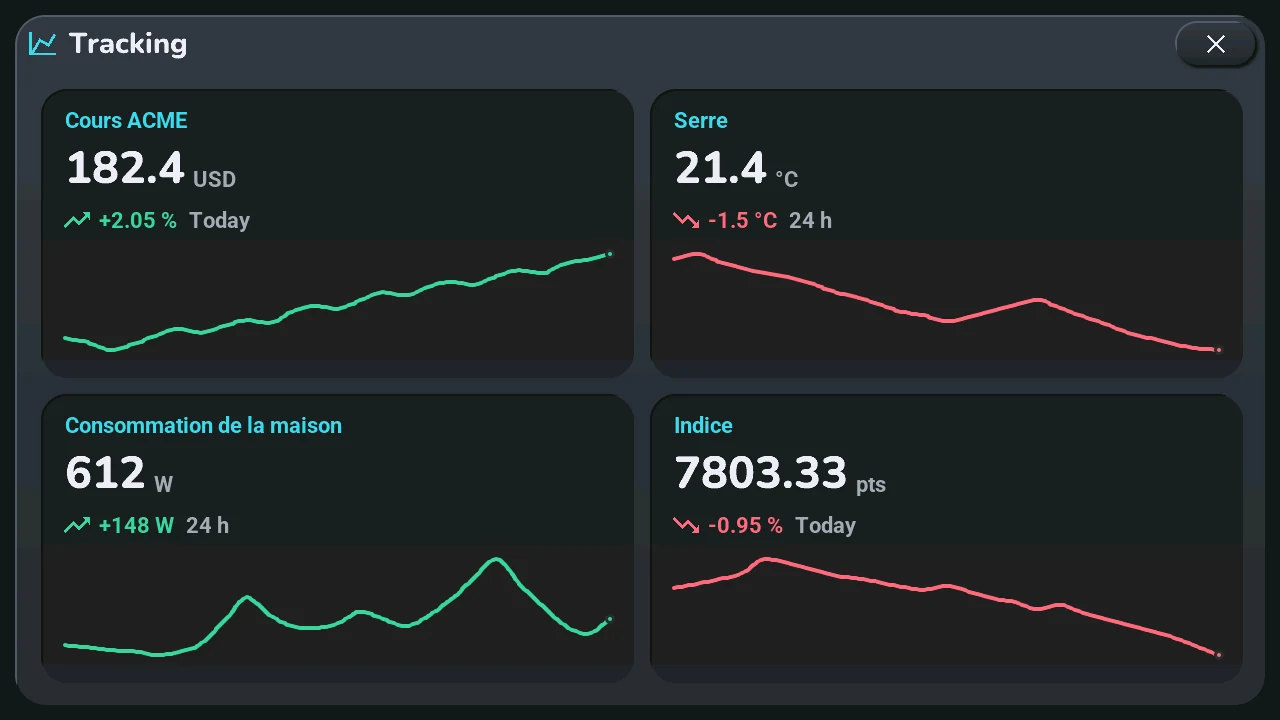
The sensors you follow, one card each, up to six: a share price, a temperature, a power, a level… any sensor of Home Assistant that has a number and statistics.
- Name at the top of the card, cut with « … » when it is too long.
- Value with its unit.
- Change, in green going up, in red going down, in grey when flat, with an arrow: the change of the day in % when the sensor gives one (« Aujourd'hui »), otherwise the difference over the last 24 hours, in the sensor's unit (« 24 h »).
- Curve of the last 24 hours, one point per hour, its last point (now) marked. An hour without a measure leaves the curve going through its neighbours. The curve shows the trend: its bottom is the lowest value of the 24 hours, its top the highest, whatever the size of the move.
Up to three sensors sit on one row; four on two rows of two; five or six on two rows of three.
Left of the clock, the first sensor of the list can take the place of the voice controls (chosen in the « Tab5 — emplacements » blueprint, section « Zone à gauche de l'horloge », or by a tap on the second temperature): its name, its change, its value and its curve over a light gradient. A tap on it opens this window. With no sensor chosen, the tablet skips it.
Setting up in Home Assistant, where to find the list: Settings → Devices & services → Entities, then search « capteurs suivis » (entity select.tab5_capteurs_suivis); or the dashboard's Tab5 settings view, section Home, tile « Tracked sensors » (a dashboard generated before this version does not have it yet: it is regenerated from tab5_dashboard.jinja). It is a drop-down list: open it, pick a sensor (« ○ » becomes « ✓ »), pick the next one. Choose the sensors in the list « Tab5 · capteurs suivis · tracked sensors » (up to six; a choice is added or removed each time you pick it; the first one is the one shown left of the clock). Only sensors with statistics are offered (state_class: measurement). With no sensor chosen, the window says where to choose them. Home Assistant sends a change at once, then at most every five minutes, and every hour so the curve moves on. This needs the tab5_suivi.yaml package of this version.
Like every window, it closes with its ×, a tap on the dark area around it, or after 45 s without a touch.