Home screen
The top of the screen never changes: voice (or the chart or the music player that can take its place), clock, buttons, temperatures, climate and the row under the clock. The numbers are those of the overview.
Voice: Domo, microphone, Discu, Ok Nabu (1 to 4)
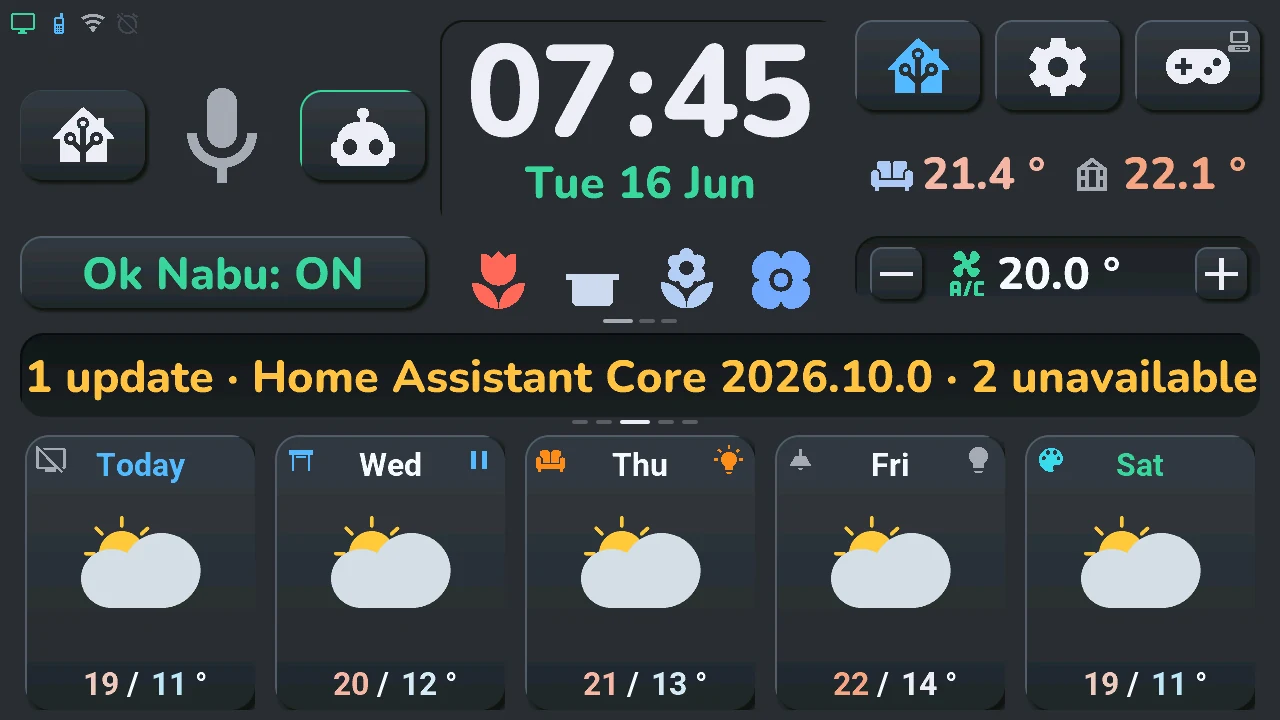
- Domo (house) and Discu (robot): the two voice modes. A tap picks one; the lit button is the current mode. Domo sends what you say to Home Assistant's assistant, which runs commands (« turn on the living room »). Discu sends it to your conversation assistant, for questions and chat. How to set them up: the two voice modes.
- Microphone: a tap listens right away, without the wake word. While the tablet answers, a tap cuts the answer and listens again. A long press opens the voice assistant window. Its colour gives the state: grey, waiting; green, listening; orange, thinking; blue, answering; red, error.
- Ok Nabu: ON / OFF: a tap turns the wake word on or off. Off, the tablet only listens when you tap the microphone.
- Now playing: while a player chosen for the music player plays, and for 5 minutes after a pause, a bar takes the place of the Ok Nabu button: the cover, the title and the artist, and a play / pause button. A tap on the bar opens the music player. The Ok Nabu button comes back when the bar goes. The bar does not show while the area left of the clock shows the music player (below).
- Lines in the Ok Nabu button: the « Tab5 — emplacements » blueprint (section « Panneau Ok Nabu · Ok Nabu panel ») can put up to three lines of four sensors there, like the row under the clock. The listening line « Ok Nabu: ON / OFF » is first by default; it can be second, third or hidden. A tap on the listening line still turns the wake word on or off; on a sensor line it does nothing. A tap on the hours of the clock shows the next line; small dashes under the button show which line is on. The lines stay put unless you choose « Automatique » in the blueprint: they then take turns with the central card.
Without a conversation assistant (« Tab5 · pipeline de discussion » set to « Aucun »), Domo and Discu are not shown and the tablet stays in Domo mode.
Voice, chart, music or sensor. The area left of the clock, above Ok Nabu, shows the voice controls (Domo, microphone, Discu), a chart of the next 15 hours (the temperature curve, its warmest and coldest values, the rain bars and the total rain expected; a tap opens the weather window), or a compact music player: the cover, the title and the artist, a thin position bar, and previous, play / pause and next (a tap elsewhere on it opens the music player), or a tracked sensor: its name, its change, its value and its curve over the last 24 hours (a tap opens the tracking window). With nothing playing, the player says so (« Rien en lecture », « Lecteur éteint ») with the player's name. A tap on the second temperature (see temperatures) shows the next one; the music player is skipped while no player is chosen in Home Assistant, the sensor while no sensor is tracked. Which one shows at start, and which ones the tap goes through, is chosen in the « Tab5 — emplacements » blueprint, section « Zone à gauche de l'horloge »; the tablet remembers the last one shown after a restart. Ok Nabu stays in place in every case, and so does the wake word.
Clock and date (5)
The clock has three touch areas: the hours (left half of the digits), the minutes (right half) and the date (below).
- Long press on the hours or the minutes: the alarm clock.
- Tap on the minutes: the next device of the − / + tile, as if you picked it in its list (see temperatures and climate).
- Tap on the date: the next line of the row under the clock.
- Long press on the date: the calendar.
- Tap on the hours: the next line of the Ok Nabu button when it has lines (see voice), otherwise nothing.
The date changes colour with the day's weather warnings (yellow, orange, red). In the status row, top left, the bell of the alarm is green when it will ring, amber when it is on but no day qualifies, struck through when it is off.
The three buttons, top right (6 to 8)
- Home Assistant (house): a tap shows your devices in the bottom row instead of the weather; tap again for the weather. It is lit while it shows the devices. Not shown when no room has a device. Details: bottom row and rooms. A long press opens the Energy window when the solar production shows in the status row, top left: a small solar panel then marks the button, in its top-right corner.
- Gear: a tap opens the settings (brightness, screen off, theme, language…); a long press, the same settings on their System page, the system console.
- Gamepad: a tap opens the Arcade; a long press, the TV remote when a TV is picked in the blueprint: a small screen then marks the button, in its top-right corner. Without a TV, the button stays and its long press does nothing.
Your own gestures. What the twelve gestures of the clock and of these three buttons do (a tap and a long press on the hours, the minutes, the date, and on each button) is chosen in the « Tab5 — emplacements » blueprint, section « Horloge et boutons du haut · Clock and top buttons »: Automatic (what is described above), Nothing, a screen — voice assistant, calendar, alarm clock, climate, plants, TV remote, system console, Energy, settings, alerts, Arcade, house, lights, shutters, temperature, music — or an action: device mode (the tap of the Home Assistant button), next device of the − / + tile, next line under the clock, next line of the Ok Nabu button, wake word on / off (the tap of Ok Nabu), the navigation wheel, next content left of the clock (voice or chart). A small icon in the button's top-right corner shows what its long press does (the icon of the window's title); when its tap is changed, the button's own icon shows what the tap does. A screen your home lacks (no climate, no plant, no TV, no light, no shutter, no temperature, no solar production for Energy) does not open, and the icon is not shown. If the gear no longer opens the console, the tablet's « Aller à l'écran » entity in Home Assistant still does.
Temperatures and climate (9, 10)
- The two temperatures: the room (sofa) and a second sensor (greenhouse). A tap on the second one shows the next content of the area left of the clock: voice controls, chart, music player, tracked sensor (see voice, chart, music or sensor); without a second sensor, a carousel icon stands in its place and does the same. The Arcade opens with the gamepad button or « Jeux » in the navigation wheel.
- A long press on either temperature opens its history: 24 hours, 7 or 30 days, and the weather forecast for the second one.
- A tap on the first temperature (the room) opens the quick actions of a climate on it: off, mode, target, options, Climates to switch to another unit, and Details for the climate window (one page per unit, swipe for the next). It is the unit of the room shown in HA mode (the room's own climate first, when its section of the blueprint has one), otherwise the climate picked in the blueprint. Until Home Assistant has sent that unit's settings, the tap opens the climate window directly.
- Target temperature: a tap opens the climate window.
- − and +: one step down or up. The new target shows at once; quick taps add up and leave as one command when you stop.
- Another device for − and +: a long press on the value between − and + unfolds a list — the climate, the devices chosen in the « Tab5 — emplacements » blueprint (section « Tuile − / + · − / + tile »: a TV or soundbar volume, a light's brightness, a thermostat, a water heater, a humidifier, a fan's speed, a shutter's position, a number), then the tablet's volume (« Son de la tablette », Tablet volume: a speaker, crossed out at 0 % or when the sound is muted). Tap one: − and + now adjust it, its icon and value show between them (the climate too), and it stays chosen, even after a restart. A tap elsewhere closes the list. A tap on the minutes of the clock moves to the next one without unfolding the list. With « Automatique » in the blueprint (« Défilement · Scrolling » of the same section), the climate and the blueprint's devices also take turns by themselves, with the central card (every 32 seconds by default); never while the list is open, and the device you pick stays a whole turn. A tap on the value opens the device's window when it has one (a light or a shutter placed in a room, the TV's remote); a shutter or a valve that is not a tile of any room opens its action wheel instead (Open, Stop, Close, and Position when it can be set to a position); otherwise nothing. The climate of the list is the one « here »: when your home has a single climate, that one, on every room; with several, in device mode, the room's own climate (else the first climate card of the room), otherwise the one chosen in the blueprint — and no climate line on a room without one if the blueprint has none. Any other device you pick stays picked on every room.
Row under the clock (11)
Up to three lines of four sensors, plus the plants line, chosen in the « Tab5 — emplacements » blueprint (section « Sous l'horloge · Under the clock »). With two lines or more they take turns, just before the central card changes (every 32 seconds by default, set in the blueprint), and small dashes under the row show which line is on. « Fixe » in the blueprint (« Défilement · Scrolling ») stops the turns: the line then changes only with a tap.
- The plants line: four icons, one per pot, coloured by soil moisture (red: to water, green: fine, blue: too wet). A long press opens the plant details.
- A sensor line: an icon per device, and the value of each sensor, coloured by what it measures (temperatures on the screen's scale, humidity, battery, gold for power and energy). A switch, a light or a detector shows its state; it is not controlled from here.
- Tap, or a tap on the date of the clock: the next line at once.
Without plant sensors and without a sensor line, the area stays empty.
Central card (12)
It changes every 8 seconds between the day's schedule, the rain in the next hour, the weather warnings, a message and the alerts sent by Home Assistant.
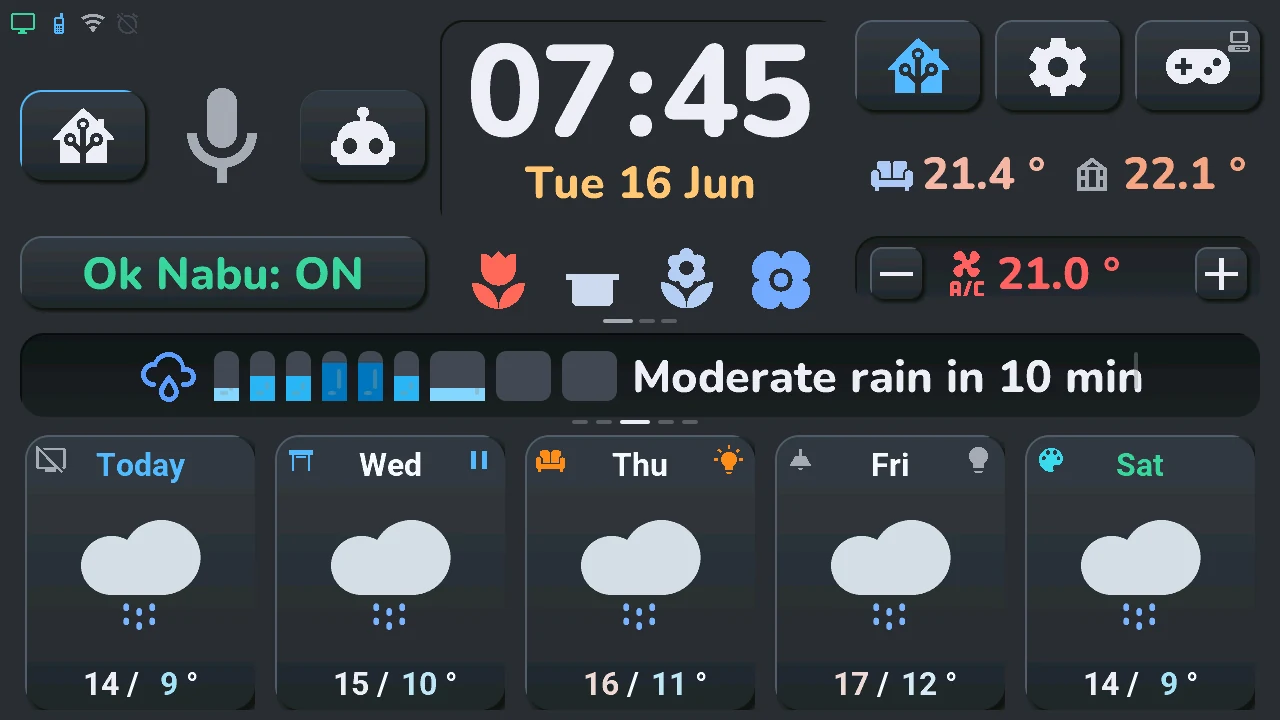
- Tap on the schedule, the rain or the warnings: the next panel at once.
- Tap on a message or an alert: it is dismissed and does not come back, until Home Assistant sends a new one.
-
Long press, whatever it shows (the dates of a forecast page and the name of a room too): the navigation wheel, centred on the card, to reach every screen of the tablet. Its first ring, each button with its word: Alerts (the alerts window, the 20 latest alerts; the button is lit while a warning or an alert is on the card), Rooms, Devices, Agenda, Tablet and Assistant (the voice assistant). A button with a dot unfolds its screens on a second ring above it, and the hub names it:
- Rooms: House, then each room that has a device, its number in the button and its name beside it; a tap shows its devices in the bottom row (device mode), the room shown is lit; with more than six such rooms, the last button, « More », shows the others, and « Back » returns;
- Devices: temperatures (the history of the first temperature of the home screen), climate, lights and shutter (the window of the room shown, otherwise of the first room that has one), Energy, plants, music (unless no player is chosen in Home Assistant) and the TV remote (only with a TV);
- Agenda: weather, calendar, alarm clock, cameras;
- Tablet: Arcade games, settings, system console.
Only what your home has is offered (no climate, no shutter, no solar production for Energy…): a family with nothing in it disappears. A tap on a screen opens it; a tap elsewhere folds the second ring, then closes the wheel.
It also shows, for a moment, the tablet's spoken answer, a day's schedule (when you tap that day's temperatures, see bottom row), the dates of another forecast page, or the name of the room in device mode: a tap on that name opens the House window, every room and its devices at once.