Bottom row and rooms
The five cards at the bottom show the weather (by default) or your devices, room by room. The Home Assistant button, top right, switches from one to the other.
Weather
The home page shows today and the next four days.
- Swipe left or right on the bottom row or the central card: swipe left, days 6 to 10, then 11 to 15, then back to the home page; swipe right, the next hours, five per page, over two pages, then back to the home page. The dots under the central card show the page; the central card gives its dates.
- After 25 s without a touch, the home page comes back by itself.
- Tap a day's temperatures (the day pages): that day's work schedule, in the central card, for 6 s.
- Long press on a weather card that holds no device: the Weather window, the hours as a curve, ten days and the details. A card with a device keeps the device's long press.
- « Forecast from 11:42 », with a small clock, above the cards on the right: Home Assistant has sent no forecast for more than 30 minutes (it sends them every 10 minutes). The cards still show the last ones received, at that time (« yesterday 21:04 », or « 3 days old »). The line goes away with the next forecast. Usual causes: Home Assistant stopped or restarting, the Wi-Fi, or the « MAJ Ecran Tab5 ESPHome Push » automation turned off (troubleshooting). It does not see a weather service that stopped updating while Home Assistant keeps sending its last forecast.
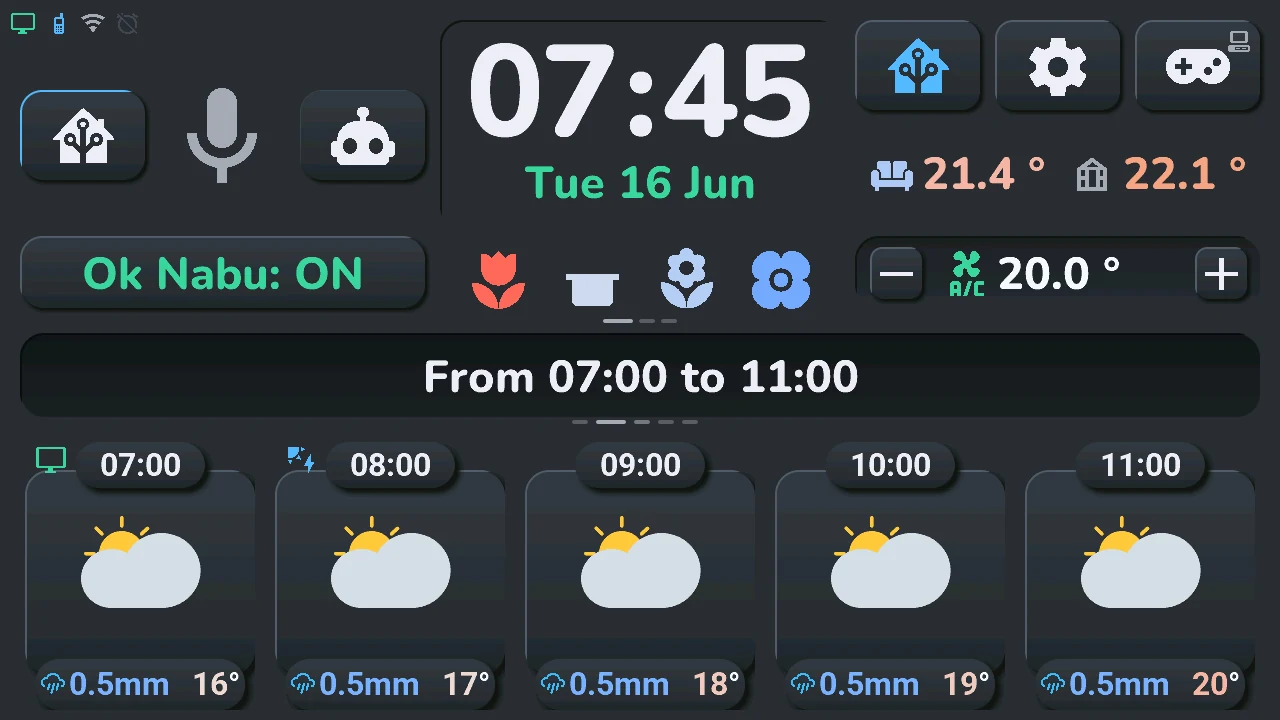
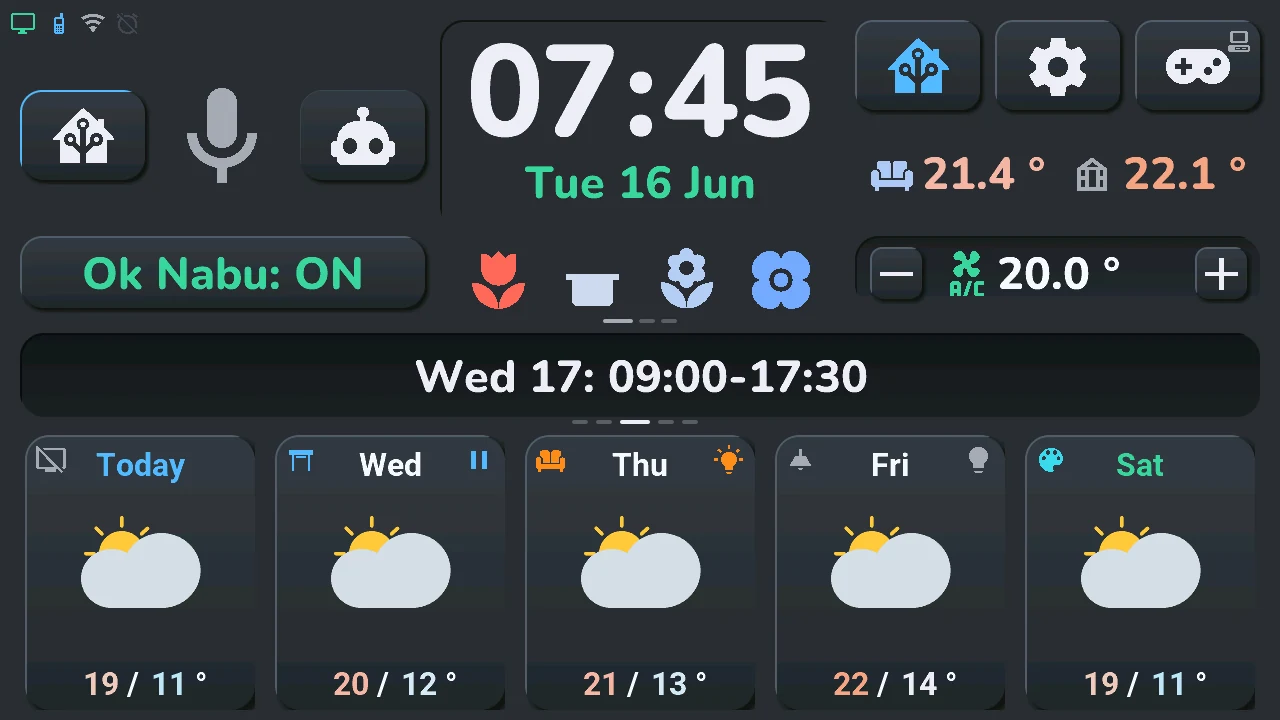
Your devices on the weather. Each page of the weather is also a room. A card that holds a device shows it in its two top corners: on the left, its icon in the colour of its state; on the right, a bulb for a light, or for a shutter the arrow of its next move (pause while it moves). The large weather icon then works as the device's button: tap and long press as in the table below. A card cut for a room of more than five devices (see Your devices) has no device on the weather: use device mode. With more than five rooms, rooms 6 and beyond each get one more page after days 11 to 15, further to the left, before the home page comes back: its cards show the room's devices as in device mode, and the central card the room's name (a tap on it opens the House window); one dot more per room. To keep the weather alone, turn off the device switch « Tab5 Appareils sur la météo » (then no room page either).
Your devices
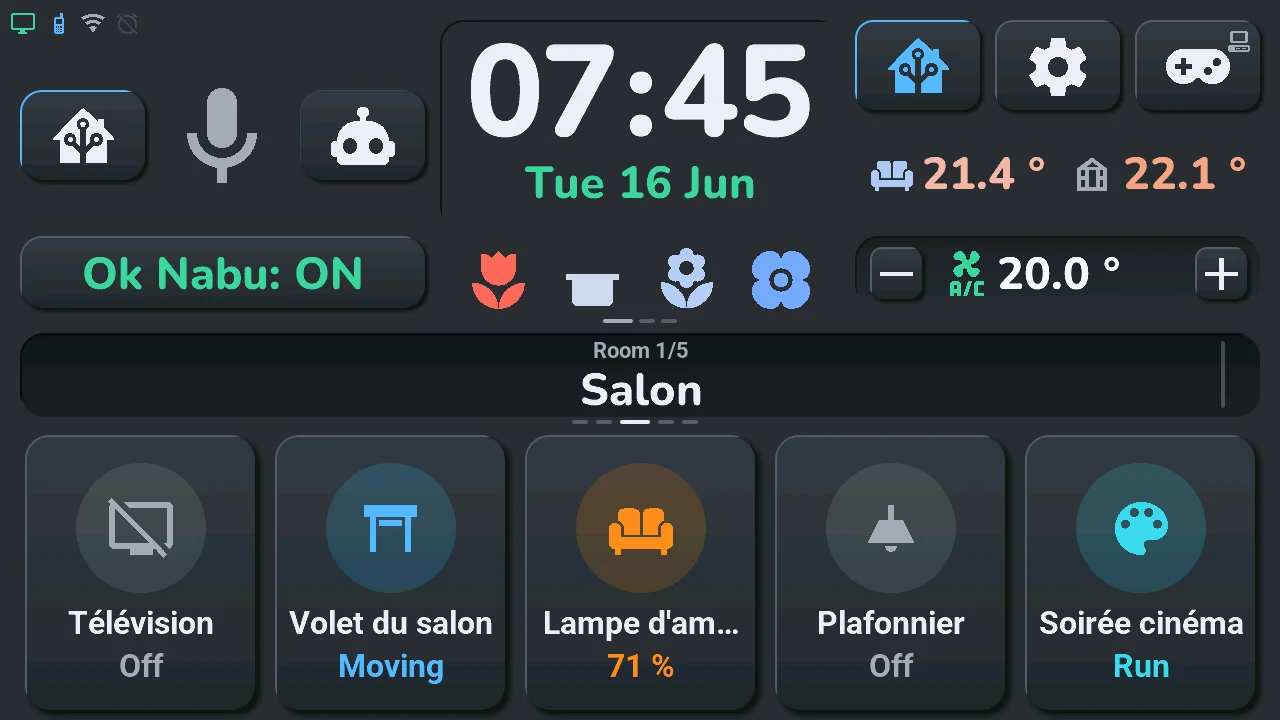
A tap on the Home Assistant button: each card shows a device of the room, like a card of a Home Assistant dashboard: its icon in a round badge of its state's colour, its name and, under it, its state (« 71 % », « Off », « Moving », « Offline » when Home Assistant cannot reach it…). The central card gives the room's name.
- Swipe left: the next room; swipe right: the previous one. After the last room comes room 1 again. A room without devices says « Aucun appareil ». The dots under the central card show the room (first dot = room 1).
- How many rooms, how many devices: chosen in Home Assistant, in the « Tab5 — emplacements » blueprint (« Nombre de pièces · Number of rooms », up to 10 rooms; up to 20 devices per room, ADR-0066). Beyond five devices, the last cards of the room are cut in two (top, bottom), then in four, each part its own device. A firmware that does not know this yet shows the first five rooms and their first five devices.
- Tap the room's name in the central card: the House window, every room at once.
More than five devices in a room (up to twenty). The five places stay; from the sixth device of the room's list, the last cards are cut in two (top and bottom), then in four: at six devices the fifth card is cut in two, at ten all five, at eleven one whole card, three cut in two and one cut in four, at twenty five cards cut in four. The first devices of the blueprint's list keep whole cards. A half shows the device's icon, its name and its value (« 21.4 °C », « On »…); a quarter its icon, its value and, when there is room, its name. The icon's colour gives the state, like the round badge of a whole card. Each part is a button of its own: tap and long press do what they do on a whole card of that device (table below); a swipe that starts on it still changes the room. - Another tap on the Home Assistant button: back to the weather. Device mode never goes back by itself.
Tap and long press, by device
On a device card, or on the weather icon of a card that holds a device:
| Device | Tap | Long press |
|---|---|---|
| Light | on / off | quick actions; set to confirm, the lights window |
| Switch, plug, fan… | on / off | device window |
| Shutter, valve | moving: stop; open: close; otherwise: open | quick actions |
| TV, media player | on / off | TV remote, for the TV picked in the blueprint; another player: the music player |
| Scene, script, button | runs it; the state shows « OK » for a second | device window |
| Climate | climate window, for this unit | quick actions; before Home Assistant sent its modes, the climate window |
| Sensor of an « Énergie » section | energy window | energy window |
| Other sensor | — (it only shows its value) | — |
Customised cards (blueprint section « Personnaliser des tuiles », step 6):
- on only: a tap turns the device on, never off;
- confirm: the first tap only asks, the state shows « Confirm? » and the icon turns amber; a second tap within 3 s sends. On a light or a shutter, the long press then shows no quick actions; on a shutter it sends the other way (open or close), confirmed the same way, instead of opening the window. In the device window, the large button asks the same way;
- read only: the card shows the state and does nothing, and opens no window.
Quick actions
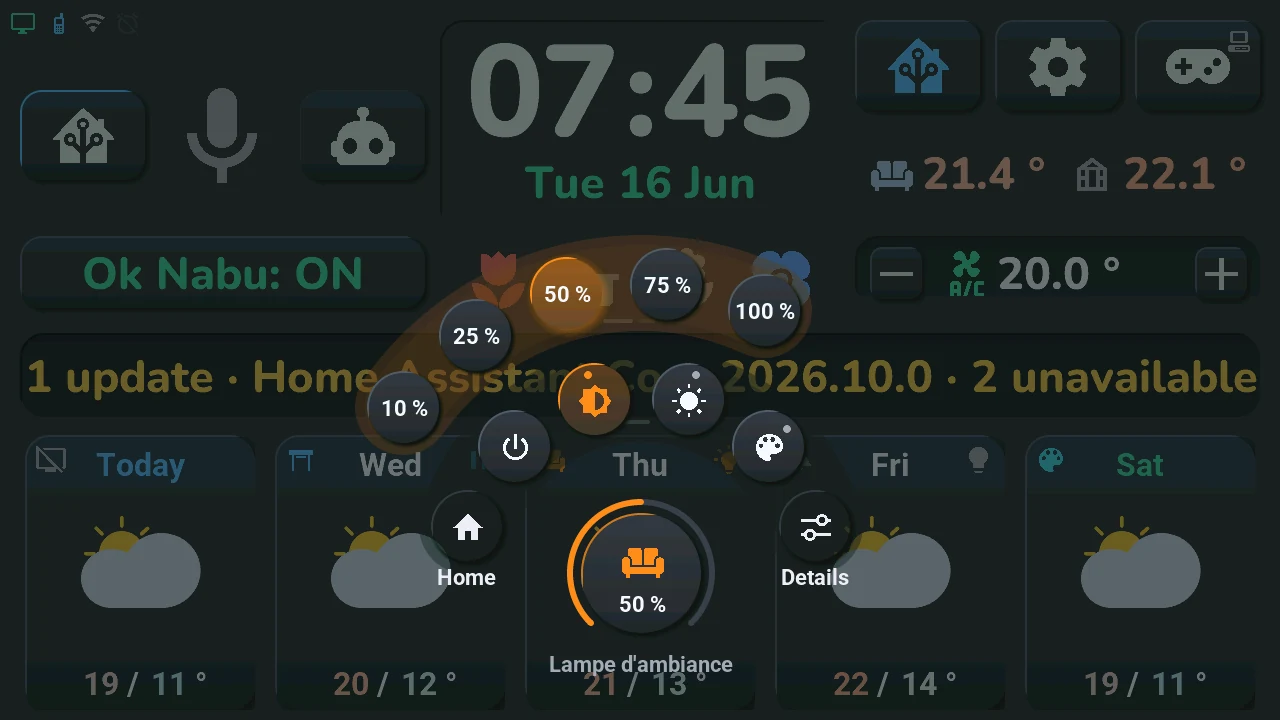
A long press on a light, a shutter or a climate opens a wheel on the card. In the middle, the device: its icon, its state, a thin gauge (brightness, position or target temperature) and its name. Above, a ring of round buttons:
- Home, on the left: the house window, with every room (not there when the wheel is opened from that window);
- the device's main commands, and its families of settings, marked with a dot: a tap on a family unfolds its choices on a second ring, above it;
- Details, on the right: the device's full window (lights, shutter, climate).
| Device | First ring | Families (second ring) |
|---|---|---|
| Light with a dimmer | off when it is on, on when it is off | brightness 10, 25, 50, 75, 100 %; a colour light also has whites (warm, cream, cold) and colours (red, orange, gold, green, blue, purple) |
| Light without a dimmer | on, off | a colour light: whites and colours |
| Shutter, valve | open, stop, close | position 25, 50, 75 %, when it reports its position |
| Climate | off | mode (heat, cool, dry, fan only: those the unit has); target (the current one and two steps on each side); options (Eco, Boost, Quiet, Swing, Breeze: those the unit has) |
The current state glows in the card's colour. A tap on a command or a choice sends it and closes the wheel. A tap elsewhere, or on the device in the middle, folds the second ring, then closes the wheel. It also closes by itself after a while. A light set to on only has no « off ».
Device window
A long press on a switch, a plug, a fan, a scene, a script or a button opens its window, like the « more info » window of a Home Assistant dashboard. Title: the card's name.
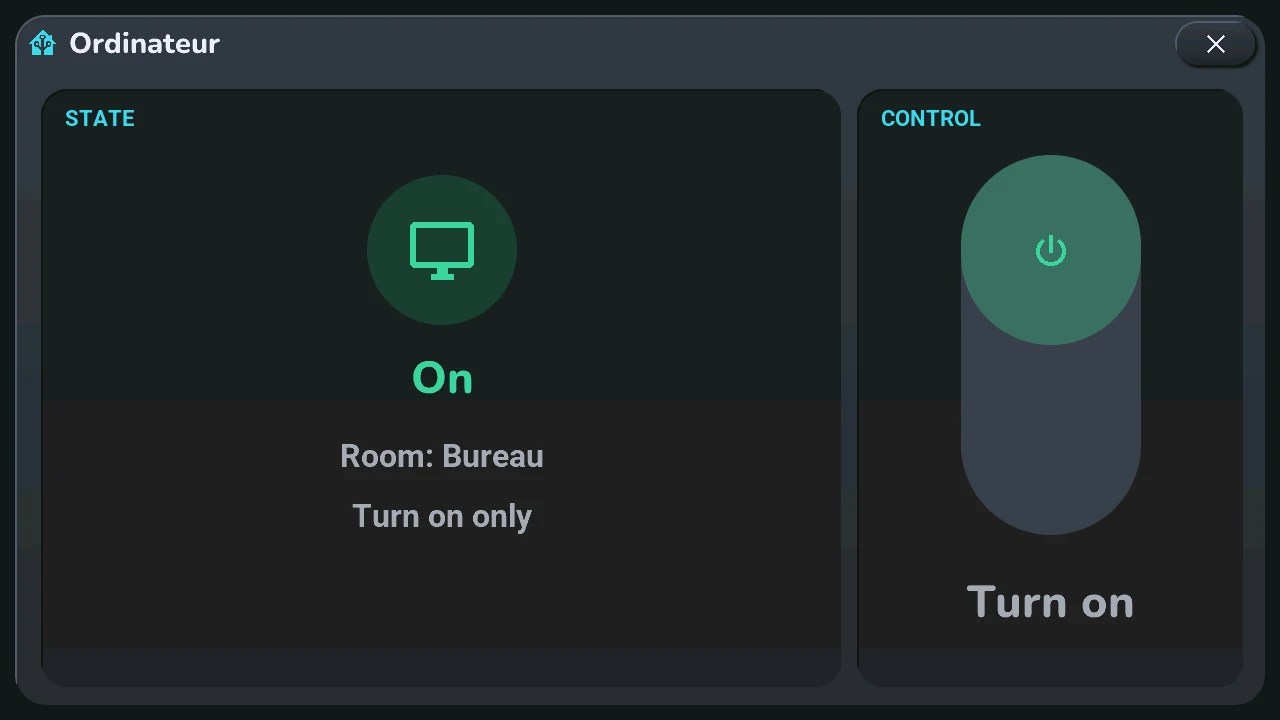
- On the left, its icon in a round badge of its state's colour, the state in words (« On », « Off », « Play », « Offline »…; « Ready » for a scene), its room, and the card's customisation (« Turn on only », « Confirm each command »).
- On the right, a large switch: filled at the top and coloured when the device is on, at the bottom and grey when it is off, filled for a scene. A tap does exactly what a tap on the card does: on / off (on only for a card set to on only), or runs the scene; under it, what a tap will do. A card set to confirm asks here too: the first tap only arms (« Confirm? », amber), a second within 3 s sends.
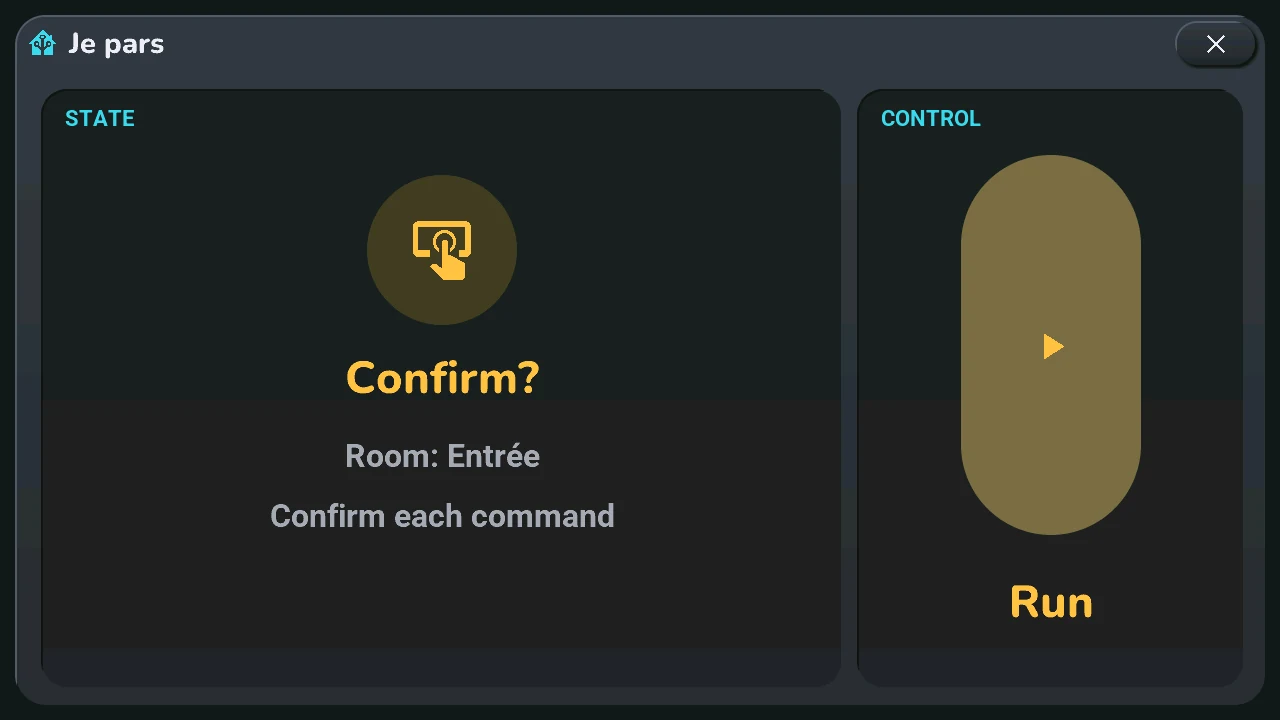
- The window follows the device while it is open. The cross, or a tap outside the card, closes it.