Step 7 — A dashboard for the tablet (optional)
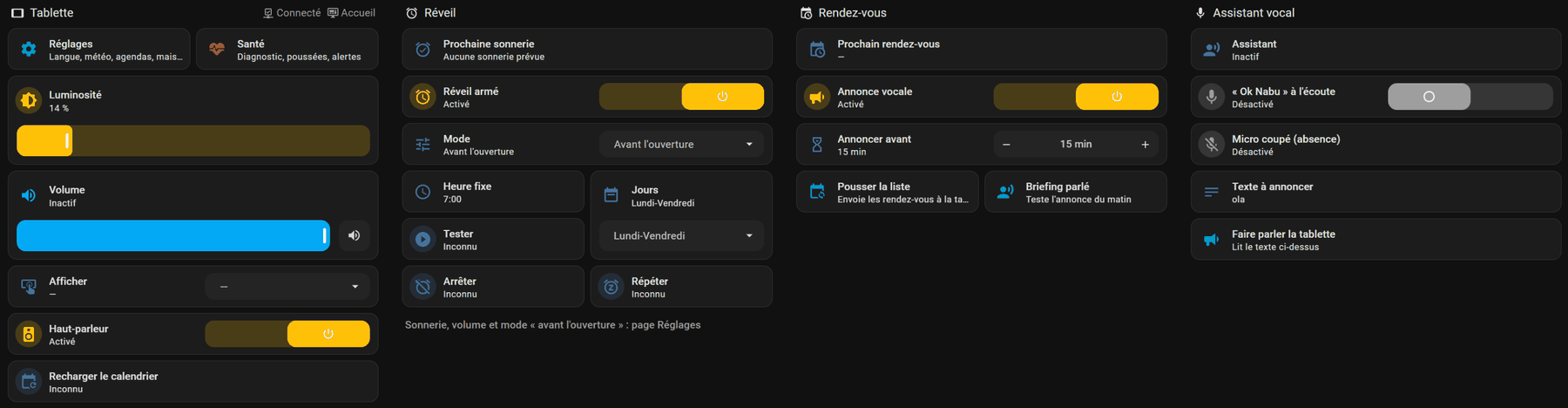
Every setting of the tablet in one Home Assistant dashboard, written for your home by a macro that step 1 added (custom_templates/tab5_dashboard.jinja). The tablet's entity ids differ from one home to another (Home Assistant builds them from the room, the device name and the entity name), so the dashboard is not a fixed file: the macro writes it with your entities.
What it shows
- A Tab5 view for daily use: brightness, volume, screen shown, alarm clock, appointments, voice assistant; alert badges only when something is wrong.
- A Settings view: how to set up the tablet, with links to its device page, its ESPHome connection, the screen slots automation and this guide; an « At a glance » table of what is chosen; what each section of the screen slots shows and how to set up solar panels; then the screen language, weather, calendars, home, voice and alarm settings, each with a short explanation.
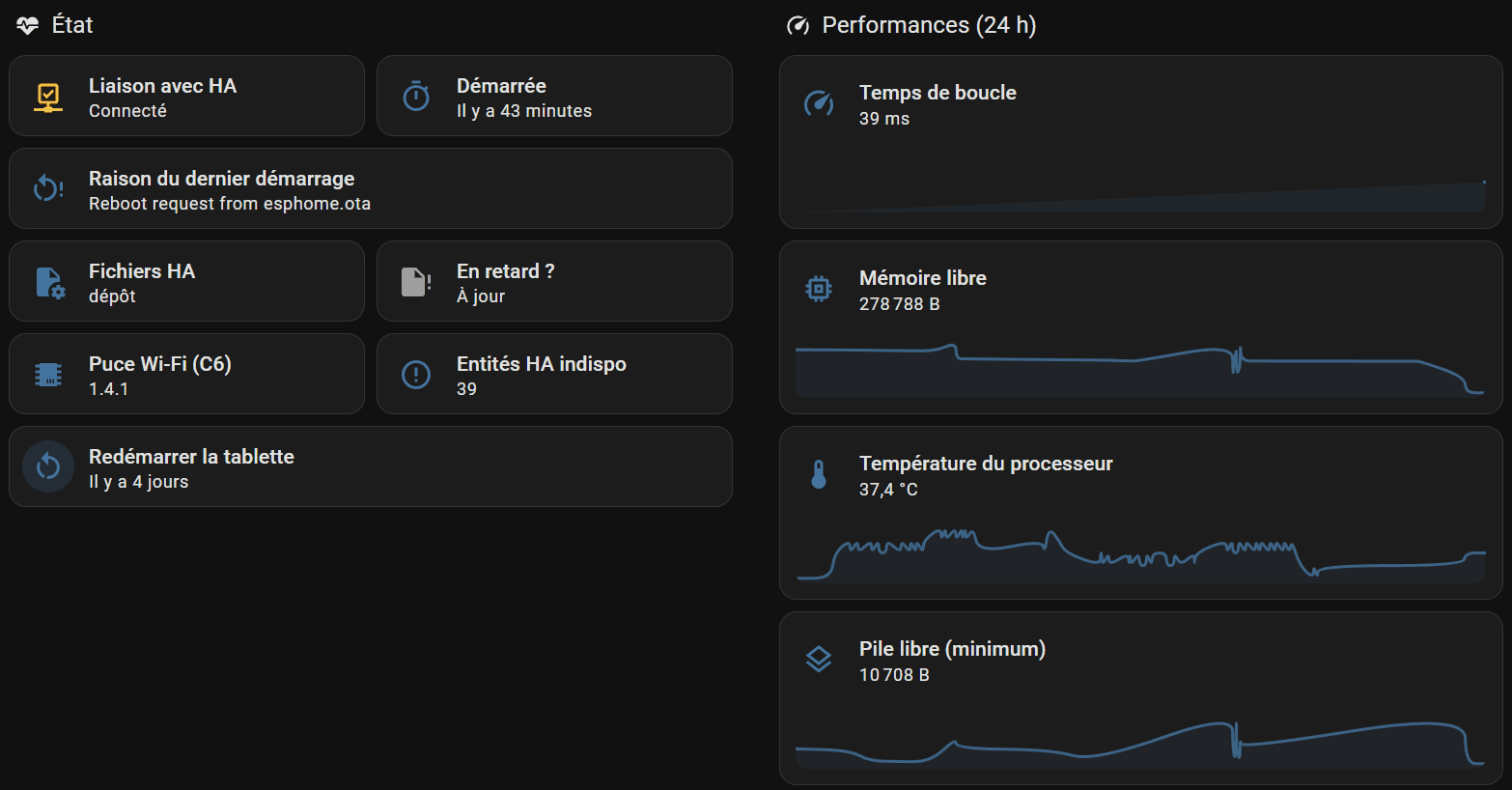
- A Health view: what to check when something is wrong, with links to the tablet's device page, Home Assistant's logs and repairs and the troubleshooting page; an « At a glance » table of the connection, pushes, last start, firmware, Home Assistant files and health alerts; then performance graphs, network, pushes and health alerts, each with a short explanation.
Create it
- Settings → Dashboards → Add dashboard → New dashboard from scratch, title Tab5 (its address becomes
/dashboard-tab5). -
Developer tools → Template: replace the editor content with this line, then copy the whole Result.
Another address:{% from 'tab5_dashboard.jinja' import tab5_dashboard %}{{ tab5_dashboard() }}tab5_dashboard('dashboard-xxx'). The labels and explanations follow the tablet's screen language (French, English, German, Dutch, Spanish, Italian or Turkish; English for any other);tab5_dashboard(langue='English')forces a language.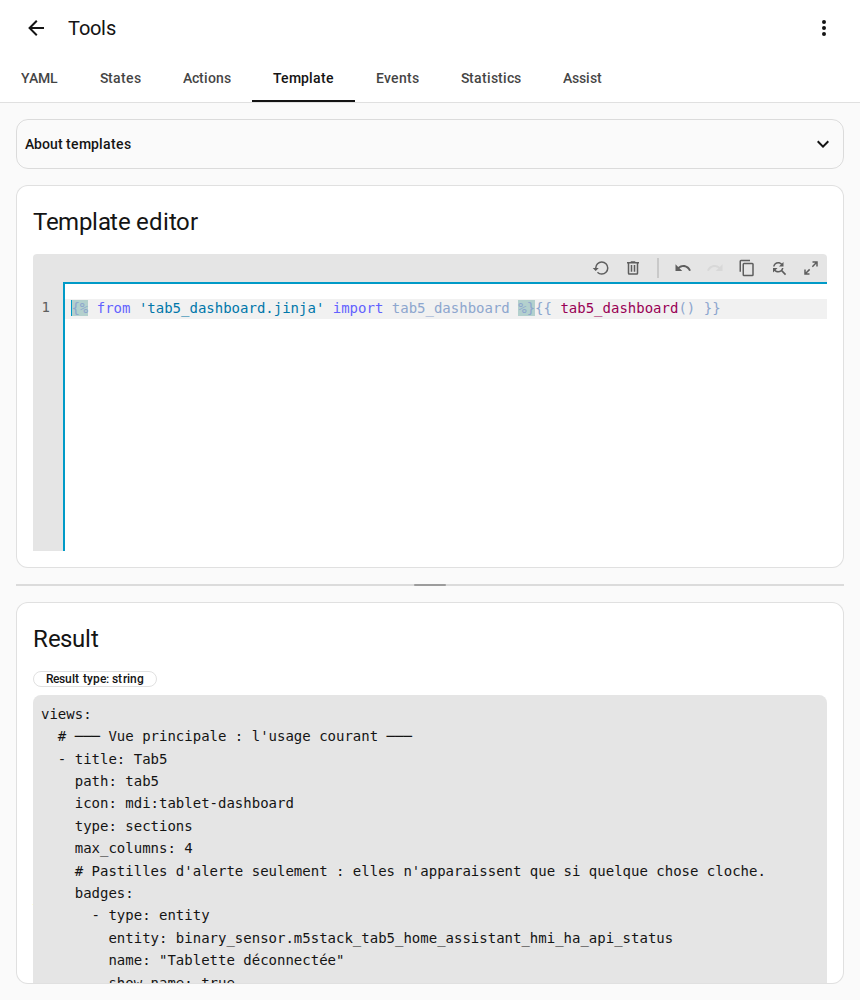
-
Open the Tab5 dashboard → pencil → ⋮ → Raw configuration editor: replace everything with the result, Save.
Good to know
- A card only appears when its entity exists (TV, shutter, battery…). The battery entities are disabled by default: enable them if a battery is fitted.
- The rooms, tiles, sensors and solar panels are set in the blueprint automation of step 6. No template can read its choices, so the Settings view explains each section rather than showing it; the « Zones masquées » sensor says what is missing.
- Two settings stay on the tablet only: the text size of the assistant popup, and a custom choice of alarm days.
- After an update that adds entities, do items 2 and 3 again.
- « TemplateNotFound: tab5_dashboard.jinja »: the macro is loaded when Home Assistant starts. Restart it, or run the action
homeassistant.reload_custom_templates.
That's it: the tablet is installed. Next: its settings, or adapt it to your home.