User manual
What happens when you touch the screen: tap, long press (hold a moment), swipe. One page per part of the screen; this one shows where everything is.
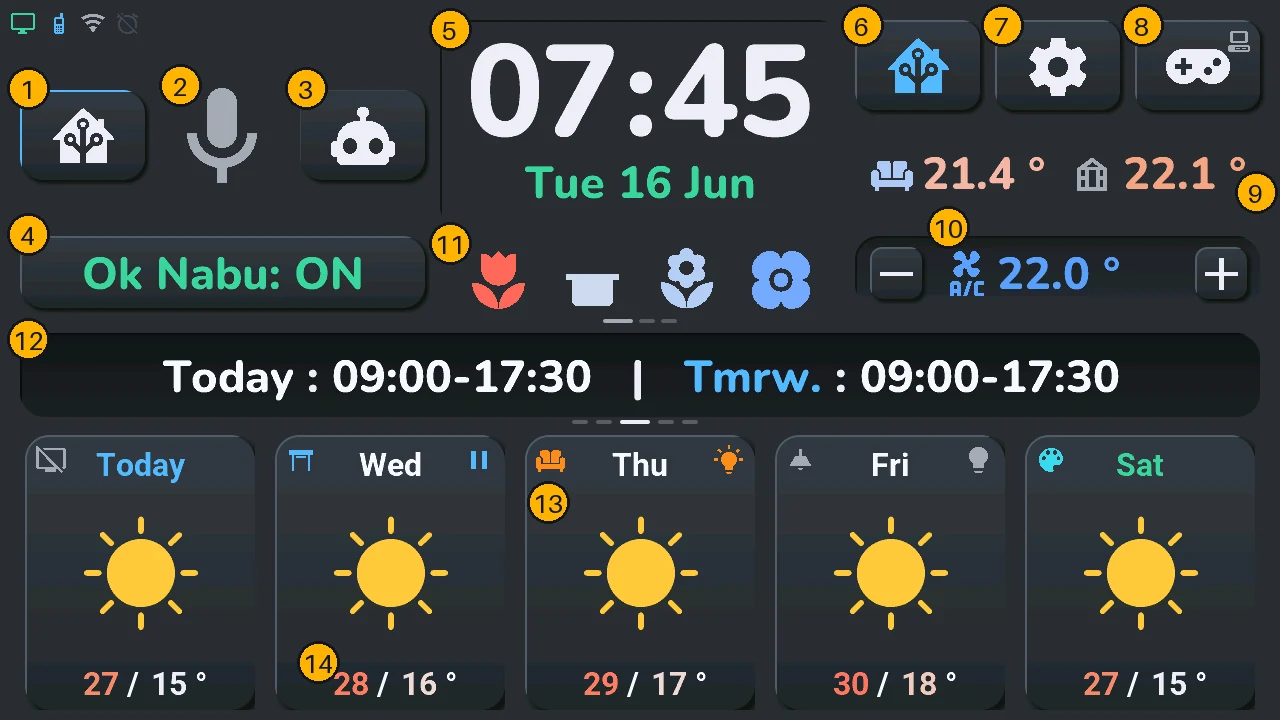
| # | Zone | Tap | Long press |
|---|---|---|---|
| 1 | Domo button (house) | voice mode: Home Assistant commands | — |
| 2 | Microphone | listen now; while it answers: stop it and listen again | voice assistant window |
| 3 | Discu button (robot) | voice mode: conversation | — |
| 4 | Ok Nabu | wake word on / off; while music plays, the « now playing » bar: the music player | — |
| 5 | Clock: hours, minutes, date | minutes: next device of − / +; date: next line under the clock | hours or minutes: alarm clock; date: calendar |
| 6 | Home Assistant button | bottom row: weather ↔ your devices | Energy window, with a solar production |
| 7 | Gear button | settings | system console |
| 8 | Gamepad button | Arcade, the games | TV remote, with a TV |
| 9 | Second temperature (greenhouse) | left of the clock: voice controls, chart of the coming hours, music player or tracked sensor | its history and the forecast |
| 10 | Climate: target, − and + | target: climate window (another device chosen: its window); − / +: one step | — |
| 11 | Row under the clock: plants and sensors | next line | on the plants: plant details |
| 12 | Central card | next panel, or dismiss a message | Alerts window |
| 13 | A card of the bottom row (its large icon) | the command of its device | the window of its device; without a device, the weather |
| 14 | A day's temperatures | that day's schedule, for 6 s | — |
The tap and the long press of 5 (hours, minutes, date) and of buttons 6 to 8 can do something else, open the house for instance, chosen in the blueprint (home screen).
Swipe left or right on the bottom row: the other forecast pages, or the next room in device mode.
Details: home screen (1 to 12), bottom row and rooms (13, 14 and swiping).
Everywhere
- Screen off: a touch turns it back on. So does a knock on the case, while the device switch « Tab5 Tap-to-Wake » is on (it is by default), and « Okay Nabu », while « Tab5 Rallumer l'écran à Okay Nabu » is on (it is by default). It goes off by itself only if you pick a delay in « Tab5 Extinction auto de l'écran » (« Jamais », never, by default): after that long without a touch, but never while the alarm rings, the voice assistant is busy or a game is open. At night, the « Tab5 · extinction de nuit » list in Home Assistant (00:00-06:00 by default) turns it off after 1 min without a touch, and back on in the morning. These four settings and the brightness are also in the settings of the tablet.
- A window (lights, climate, calendar…) closes with its ×, top right, or with a tap on the dark area around it. Left alone 45 s without a touch, it closes by itself; a game never does.
- Another forecast page comes back to the home page after 25 s without a touch.
- What you don't have is not shown: no TV, no remote on the long press of the gamepad button; no solar production, no Energy window on the long press of the Home Assistant button; no conversation pipeline, no Domo / Discu buttons; no greenhouse sensor, a carousel icon in its place, still switching the area left of the clock; no plants and no sensor line, nothing under the clock.
The windows
| Window | Opens from | Page |
|---|---|---|
| Lights | long press on a light, or « Aller à l'écran » | Lights |
| Shutters | long press on a shutter, or « Aller à l'écran » | Shutters |
| Climate | the climate target, or a climate card | Climate |
| TV remote | long press on the gamepad button, or on a TV | TV remote |
| Calendar | long press on the date | Calendar |
| Alarm clock | long press on the time | Alarm clock |
| Voice assistant | long press on the microphone | Voice |
| Energy | a solar or energy card, or a long press on the Home Assistant button | Energy |
| Temperature | long press on one of the two temperatures | Temperature |
| Plants | long press on the plants line, under the clock | Plants |
| Alerts | long press on the central card | Alerts |
| Music | long press on a media player, the « now playing » bar, or « Aller à l'écran » | Music |
| Tracking | the tracked sensor left of the clock, or « Aller à l'écran » | Tracking |
| Fridges and freezers | the icon blinking on the clock, « Agenda ▸ Frigos » on the navigation wheel, or « Aller à l'écran » | Fridges and freezers |
| AI server | « Agenda ▸ Serveur IA » on the navigation wheel, or « Aller à l'écran » | AI server |
| House | in device mode, tap on the room's name in the central card | House |
| Cameras | « Agenda ▸ Caméras » on the navigation wheel, « Aller à l'écran » (Home Assistant), or a button given « Caméras · Cameras » by the blueprint | Cameras |
| Settings | the gear button | Settings |
| System console (System page of the settings) | long press on the gear button | System console |
| Arcade | the gamepad button, or « Jeux » in the navigation wheel | Arcade |
Home Assistant can also open a window with the tablet's « Aller à l'écran » list (go to screen).
These pictures are drawn by the project's CI from the firmware itself, with the demo mode data; screens and features explains how each part works.