System console
Since 2026-10-08 the system console is the System page of the settings, their fourth page. Opens with a long press on the gear button, top right of the home screen (a tap opens the settings on their Screen page), unless the blueprint gives that long press another screen (home screen); then with the tablet's « Aller à l'écran » entity in Home Assistant, option « Console système ». From another page of the settings: a tap on System at the top, or slide left or right.
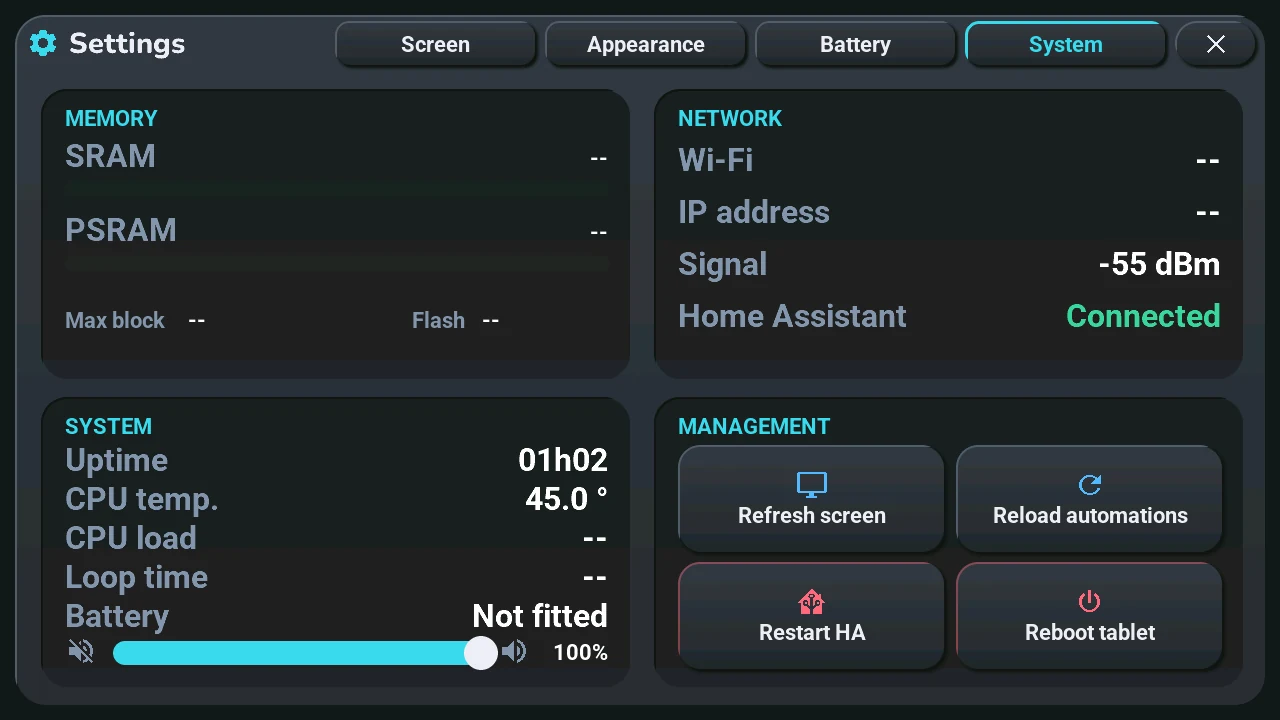
Memory, Network and System only show: the tablet's memory, its Wi-Fi, IP address and signal, whether Home Assistant is connected, how long it has been running, the processor's temperature. In System, the slider is the tablet's volume (the same as in the voice assistant window), and two lines added on 2026-10-06 (discussion #278):
- CPU load: how busy each of the processor's two cores was over the last 2 seconds, core 0 then core 1. Core 1 runs ESPHome's main loop (the screen, the link to Home Assistant): when the screen feels slow, look at it. "--" during the first 2 seconds after the page appears.
- Battery: the level and the voltage of the tablet's own battery, with the icon of the status bar (a bolt while charging; the level, estimated from the voltage, reads high while charging). Since the next version, while the tablet runs on its battery, the level and the power drawn instead (for example « 78% · 2.4 W »). On USB when no battery is detected, Not fitted while the Tab5 Batterie montée switch is off (the tablet's device page in Home Assistant): never a made-up 0 % or 100 %.
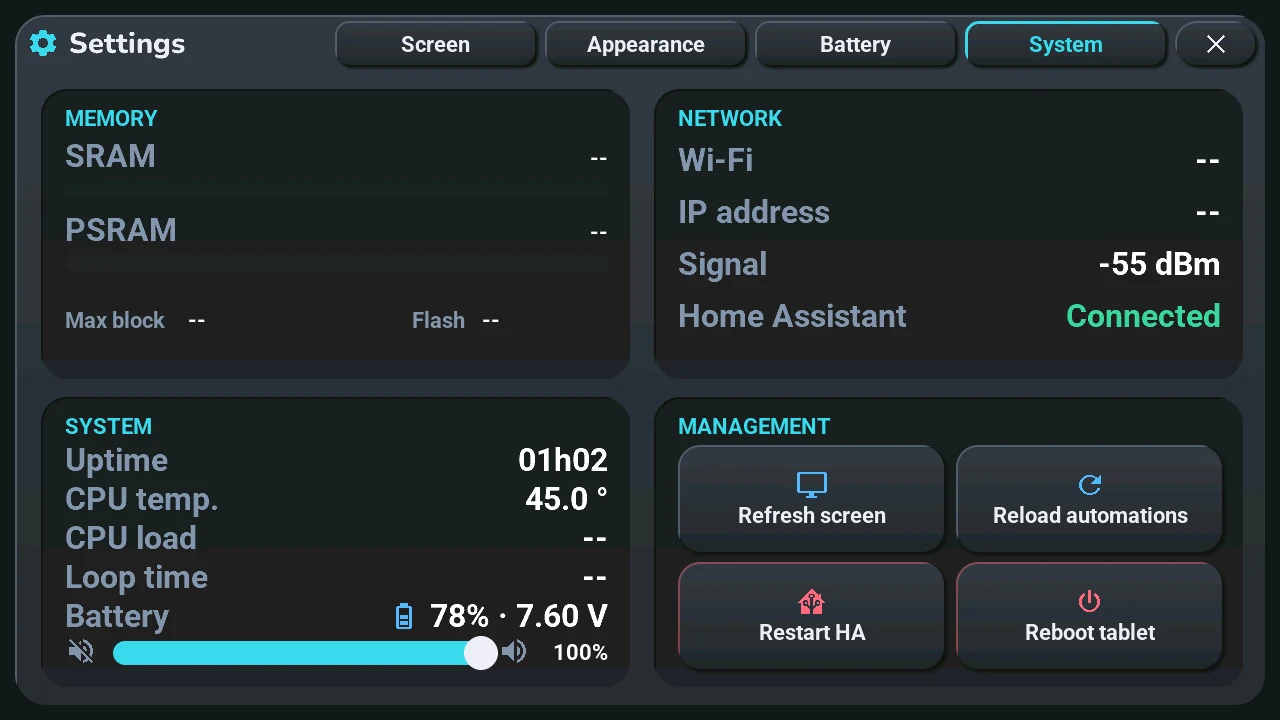
Management
- Refresh screen: Home Assistant sends everything again. The first thing to try when the screen shows old data.
- Reload automations: Home Assistant reloads its automations.
- Restart HA and Reboot tablet ask first:
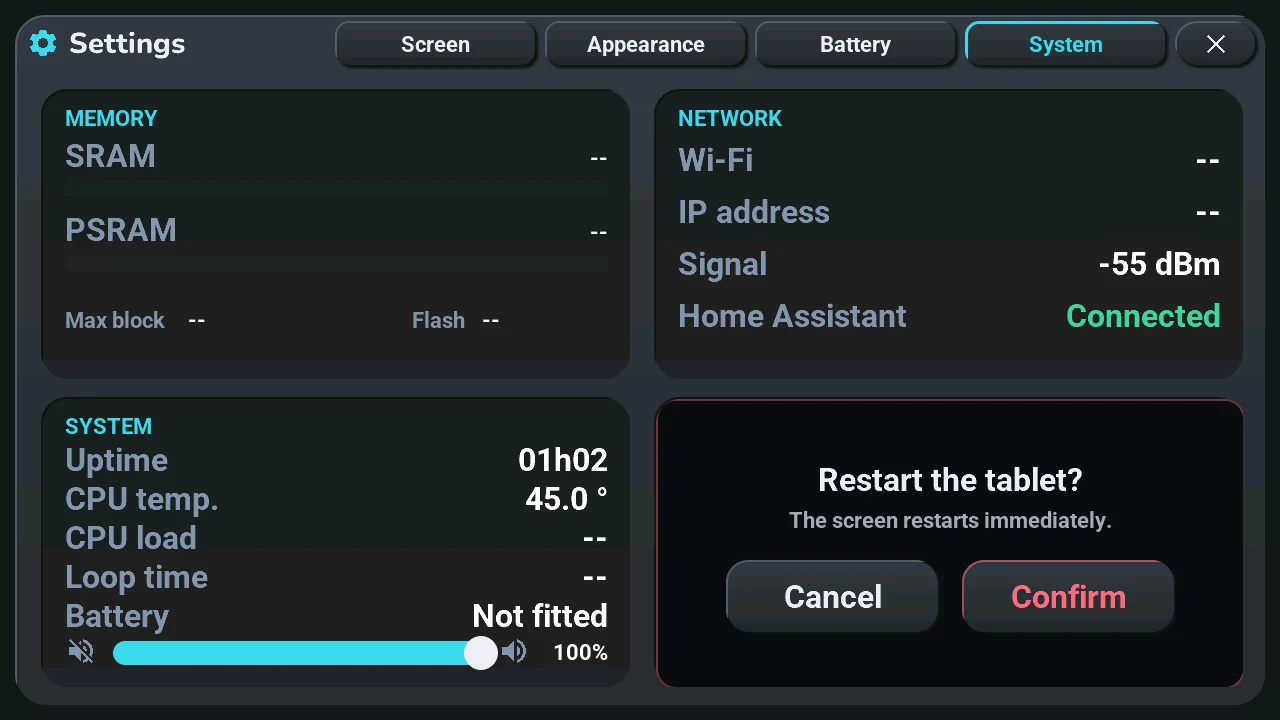
Cancel or Confirm; after Reboot tablet, the tablet restarts at once.
The theme, light or dark and the language are in the settings. To read what the tablet receives, the console is not enough: see debugging.