Settings
The tablet settings you may want to change without opening Home Assistant, on four pages. Opens with a tap on the gear button, top right of the home screen, on the Screen page; a long press opens the System page (the system console).
The page names sit at the top, next to the title: the page shown is lit. Tap a name to show its page, or slide your finger left (next page) or right (previous page) anywhere in the window; after the last page comes the first again. Sliding the brightness or the volume slider moves the slider, never the page, and a slide that starts on a button does not press it.
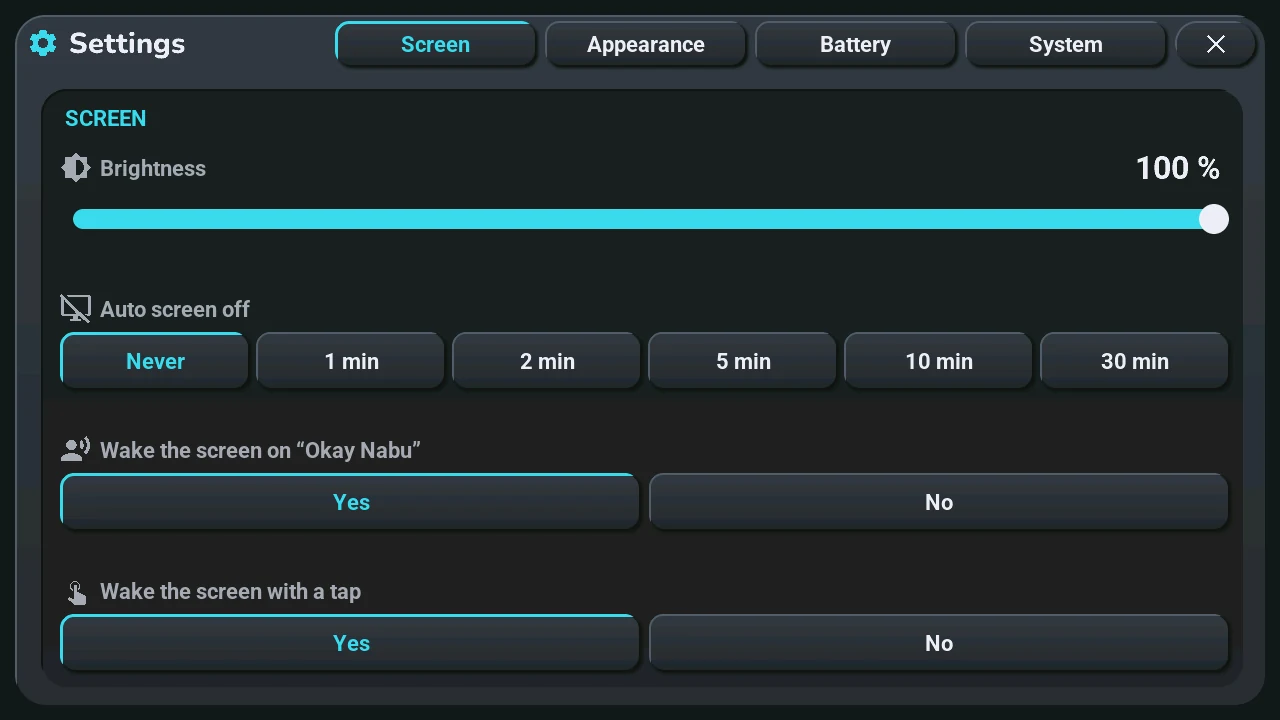
Screen
- Brightness: the slider, from 10 to 100 %. On battery the energy saving mode caps it at 50 %, then lowers it to the minimum after 30 s without a touch or below 35 % battery (Power saving, on the Battery page).
- Auto screen off: Never, or 1, 2, 5, 10 or 30 min without a touch. Never while the alarm rings, the voice assistant is busy or a game is open. To have it only on battery, turn on « Tab5 Extinction auto sur batterie seulement » in Home Assistant.
- Wake the screen on « Okay Nabu »: Yes or No. With No, the screen stays dark and the answer is only spoken.
- Wake the screen with a tap: Yes or No, a small knock on the case.
Appearance
- Theme: the two arrows go to the previous or the next theme; the screen repaints at once. The name stays the same in every language.
- Light or dark: Dark, Light or Auto: light by day, dark at night.
- Night (Auto mode): what Auto follows. Home Assistant sets it from the sun, at sunset, at sunrise and each time the tablet connects: a change made here lasts until then.
- Animations: Full (the default), Essential: only the central card still turns, or None: everything is instant. While power saving is on, it is None.
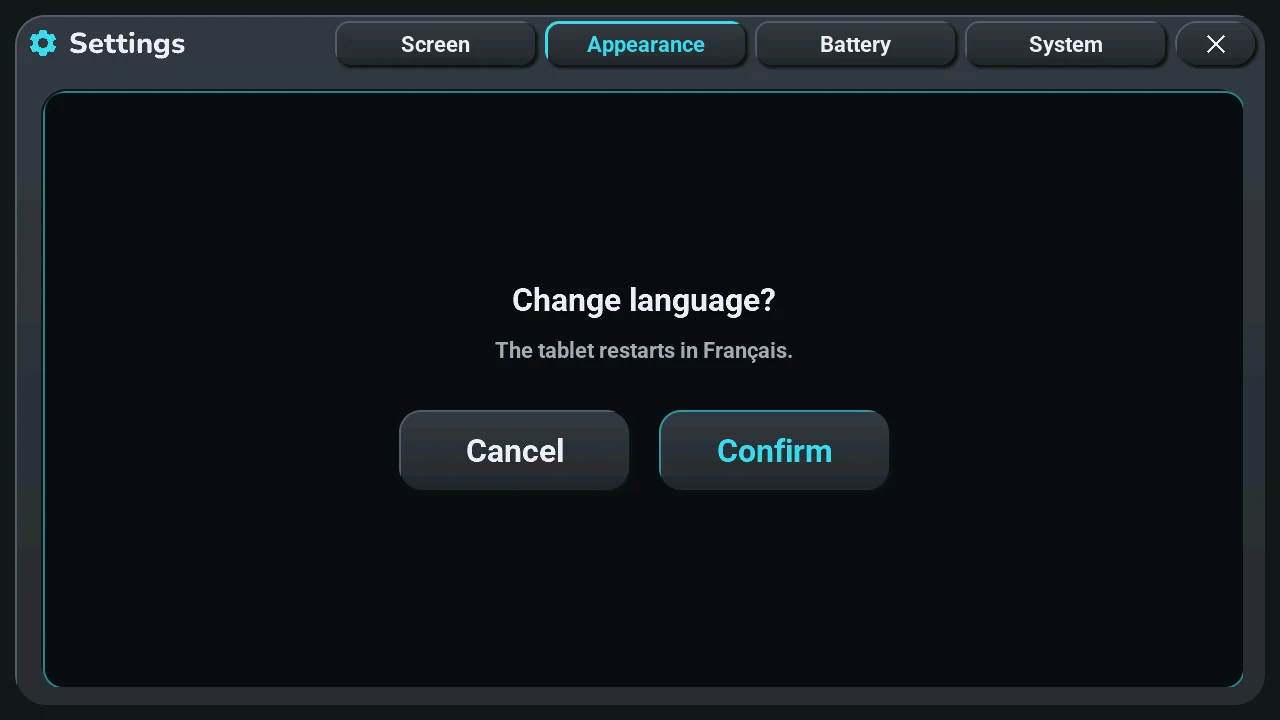
- Language: one button per language, written in that language. The tablet asks first, because it restarts in the new language: Cancel or Confirm.
Battery
On the left, five settings:
- Charge limit: 100 % or 80 %. At 80 %, charging stops at 80 % and starts again at 70 %: for a tablet that stays plugged in.
- Charging mode: Classic (the default) or Fast: the charger's quick charge, only while the battery is charging.
- Power saving: Never, On battery (the default) or Always: what caps the brightness, as above.
- Eco Wi-Fi: Never (the default), On battery or Always: the Wi-Fi saves a little power between two exchanges; answers may come a little later. Never during voice, sound or an update.
- Battery fitted: Yes shows the battery icon in the status bar (a plug when the voltage says there is no battery).
On the right, what the tablet reads, refreshed every 2 seconds while the page is shown:
- State: Charging, On USB, On battery, No battery detected, or Measuring for the first minute after a restart.
- Level, Voltage and Consumption: "--" when no battery is detected or nothing has been measured yet, never a made-up 0 %.
System
The system console: memory, network, the processor and the volume, and the management buttons.
The lit button is the current choice. Each setting is also an entity of the tablet in Home Assistant (tablet settings): what you change here is what Home Assistant sees, and the reverse.