Lights
Opens with a long press on a light: its card in device mode, or the weather icon of a card that holds it; then Details among its quick actions (a light set to confirm opens it at once). It opens on that light's room, with that light selected. Also with « Aller à l'écran » → Lumières from Home Assistant, the navigation wheel (Appareils → Lumières), or a home page gesture set to Lights of the room shown: on the room shown on the home page, or the first one that has lights. A tap on a light's card only turns it on or off (bottom row).
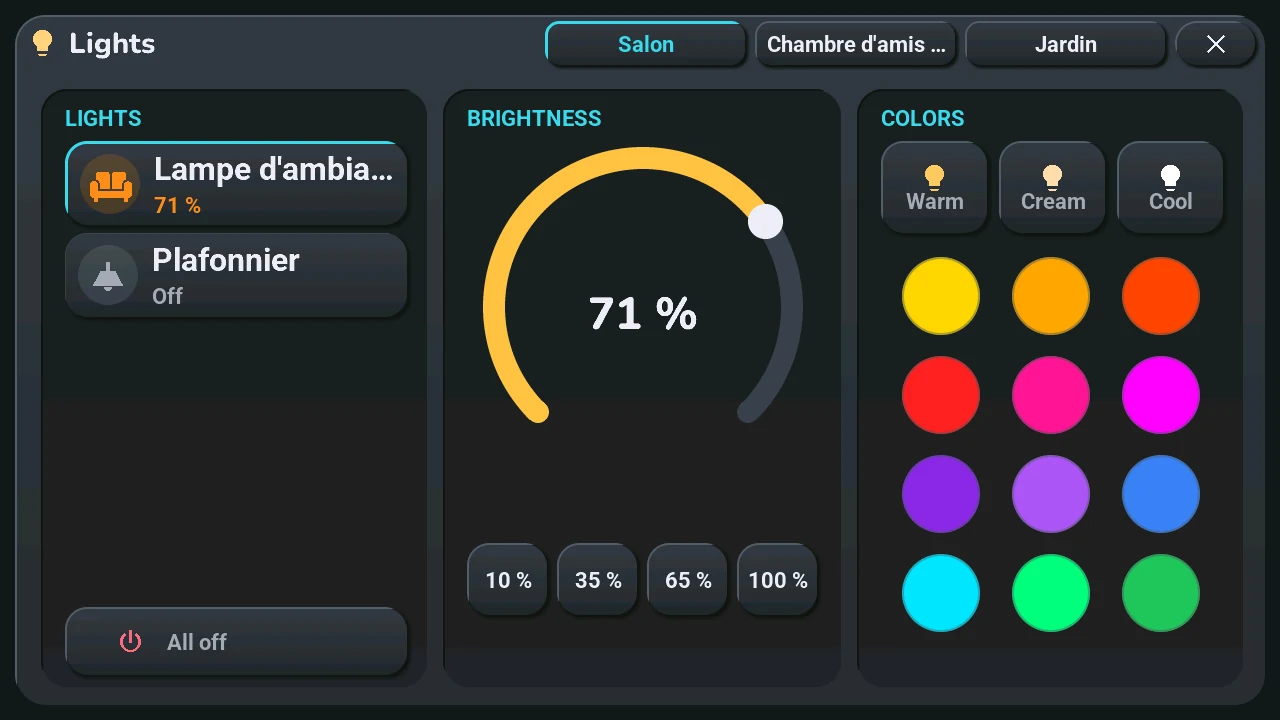
One page per room: every light of the house, room by room. The names of the rooms that have lights are at the top, next to the ×; the room shown is in the accent colour. Swipe left or right anywhere on the window (except on the arc) to go to the next or the previous room, or tap a room's name. A house with lights in one room only has no names and no swipe. A page holds five lights: a room with more takes several pages, its name says which one (« Living room 2/3 ») and the swipe goes through them; with one room only, one name per page.
Lights (left)
- The lights of the room, up to five, each with its icon, its name and its state (« 65 % », « On », « Off »), like its card. The selected one is framed: the brightness and the colours control it. A tap on another one: the window now controls it.
- Tap the round icon of a light: it turns on or off, like a tap on its card (a light set to confirm asks first).
- Long press a light: its quick actions, around its icon.
- All off: every light of the room shown.
Brightness (centre)
- Drag the arc: the percentage follows your finger, and the light changes once your finger stops.
- 10 %, 35 %, 65 %, 100 %: straight to that level.
Colors (right)
- Warm, Cream, Cool: three whites.
- The twelve round swatches: that colour.